Reviewed against documentation: November 19, 2026. Hands-on test status: Pending. This guide describes a reproducible setup based on official product documentation; it does not claim that PhoPromptLabs has already deployed or tested this exact workflow. Screenshots and test results will be added after verification.
A customer fills out a form on your website. Instead of copying their details into a spreadsheet, you can use an n8n workflow to save the inquiry automatically. Once that basic automation works, you can add AI to help categorize requests or draft replies for a person to review.
In this beginner guide, we'll start with a working design that needs no AI API: an n8n form connected to Google Sheets. You'll learn what to configure, what to test and how to extend it responsibly.
What you will build
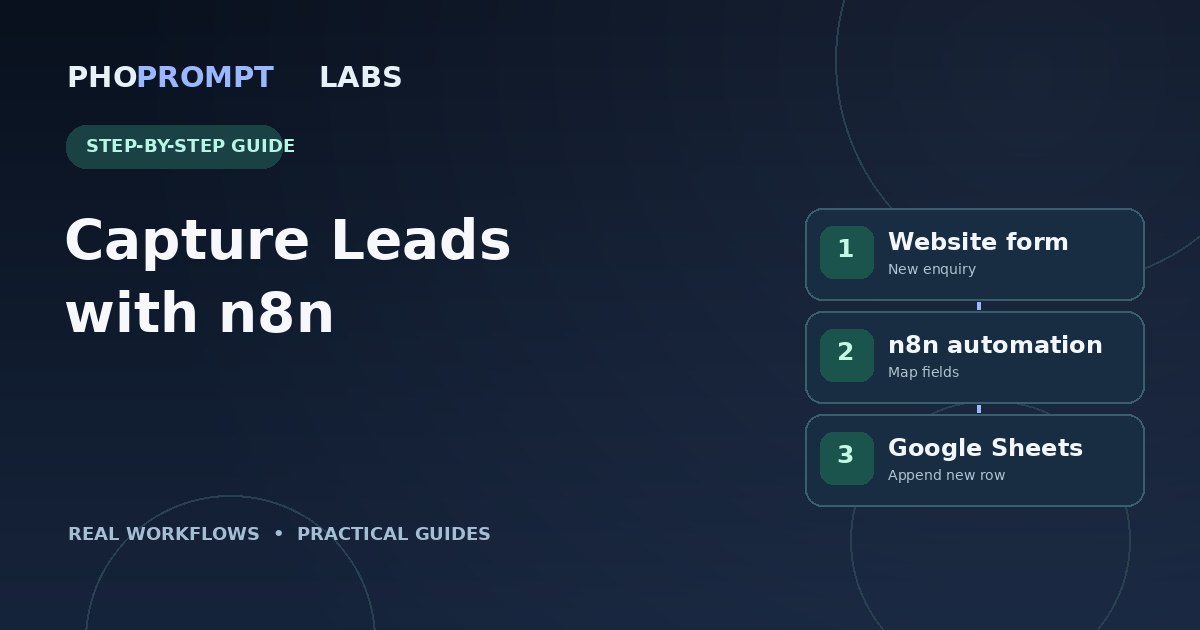
1 n8n Form Trigger: capture a new inquiry
↓
2 Google Sheets: append a new row
A visitor submits their name, email, company and message. n8n receives the submission and adds one row to your spreadsheet. This simple workflow is useful for freelancers, small agencies and service businesses that want a lightweight intake log.
Requirements: An n8n instance (cloud or self-hosted), access to Google Sheets, and permission to connect your Google account. If you self-host, Google OAuth setup can take extra configuration. Use fictional customer details while testing.
Step 1: Create the Google Sheet
Create a new spreadsheet named Lead Intake Demo. In the first row, add these column headers:
Name | Email | Company | Message | Status
Keep the headers consistent. We'll map the incoming form data to these columns and write New into the Status column. Limit access to people who need to see the lead data.
Step 2: Create a form in n8n
- Create a new workflow in n8n.
- Add the n8n Form Trigger node.
- Set the form title to
Request a consultationand add four fields: Name (Text), Email (Email), Company (Text), and Message (Textarea). Make Name, Email and Message required. - Select Execute Workflow, open the Test URL, and submit a fictional inquiry, for example:
Alex Example,alex@example.com,Example Studio, andOur team needs help organizing website inquiries. - Confirm that the Form Trigger shows the submitted data in the workflow editor.
The Test URL is for debugging. When the workflow is ready and published, the Production URL is the one to share publicly. Do not mix them up.
Official reference: n8n Form Trigger documentation.
Step 3: Connect Google Sheets
- Add a Google Sheets node after the Form Trigger.
- Connect your Google account using the credentials method supported by your n8n deployment. n8n Cloud offers managed Google OAuth for supported nodes; self-hosted installations normally require custom OAuth configuration.
- Under the Google Sheets node, select Resource: Sheet Within Document and Operation: Append Row.
- Select your
Lead Intake Demospreadsheet and its target sheet. - Choose Map Each Column Manually. Map Name, Email, Company and Message to the corresponding output fields from the Form Trigger using n8n's expression picker. Set Status to the fixed value
New. - Execute the workflow again using the test form. Open Google Sheets and verify that the new row contains the correct details.
If no row appears, inspect the execution output and check Google permissions, spreadsheet selection, column names and field mapping. Do not guess the input field names: select them from the Form Trigger's actual output.
Official references: Google Sheets Append Row and Google credentials.
Step 4: Test failures before publishing
Test more than a happy-path example:
- Normal: A valid inquiry creates one correctly mapped row.
- Missing details: Required form fields block an incomplete submission.
- Repeated submit: Submit the same inquiry twice. This basic workflow may create two rows, so add duplicate detection before using it as a production CRM.
- Invalid access: Confirm an unauthorized person cannot edit the spreadsheet.
- Credentials: If Google authentication expires, check that the workflow reports the failure rather than silently losing data.
Do not feed a real customer list into an untested workflow. Lead forms handle personal data, and unnecessary data should not be collected.
Step 5: Publish the workflow
Once the tests pass, save and publish the workflow, then use the Production URL shown in the Form Trigger. If you self-host on a laptop, a localhost URL is not a public web form. A publicly accessible production deployment needs proper HTTPS, security and availability controls.
Submit another test lead through the Production URL and review the execution history. A form that works in test mode is not proof that production mode works.
Optional upgrade: Add AI categorization and draft replies
The basic intake workflow does not need an LLM. To add AI, you can use n8n's Information Extractor node to turn the message into structured fields such as:
{
  "category": "website_automation",
  "priority": "normal",
  "summary": "Customer wants help organizing inquiries."
}
This JSON is an illustrative target format, not a recorded model output. Connect the extractor to a model provider supported by your n8n version and verify its output against sample cases. Many model API calls have separate charges. Keep the original lead details available when mapping fields back into Google Sheets.
You can also add a Gmail node with Resource: Draft and Operation: Create to prepare a reply. A person should check the draft before sending it. Avoid using the Gmail Send operation for first-contact customer replies until you have reliable consent, safeguards and an approval process.
Official references: Information Extractor and Gmail Draft Operations.
Is this free?
The basic workflow does not require a paid AI API. The actual cost depends on your n8n hosting choice, infrastructure, and any connected services. n8n is fair-code/source-available, not open-source under an OSI-approved license; review its license before commercial hosting or resale. Optional AI categorization may introduce API charges.
Is Google Sheets a replacement for a CRM?
Not necessarily. A spreadsheet can be enough for an initial intake log, but production businesses may need access controls, duplicate handling, retention rules, audit trails, and integration with a proper customer relationship management system.
Want a setup tailored to your business?
PhoPromptLabs's $249 launch offer is a fixed-scope service for one lead intake workflow with up to two straightforward integrations, a hand-off guide and human-reviewed replies. Any third-party hosting or API charges are separate. See the setup offer.
PhoPromptLabs is independent and is not affiliated with or endorsed by n8n or Google. This guide contains no affiliate links. Last documentation review: November 19, 2026. Hands-on verification is pending at the time of drafting.